
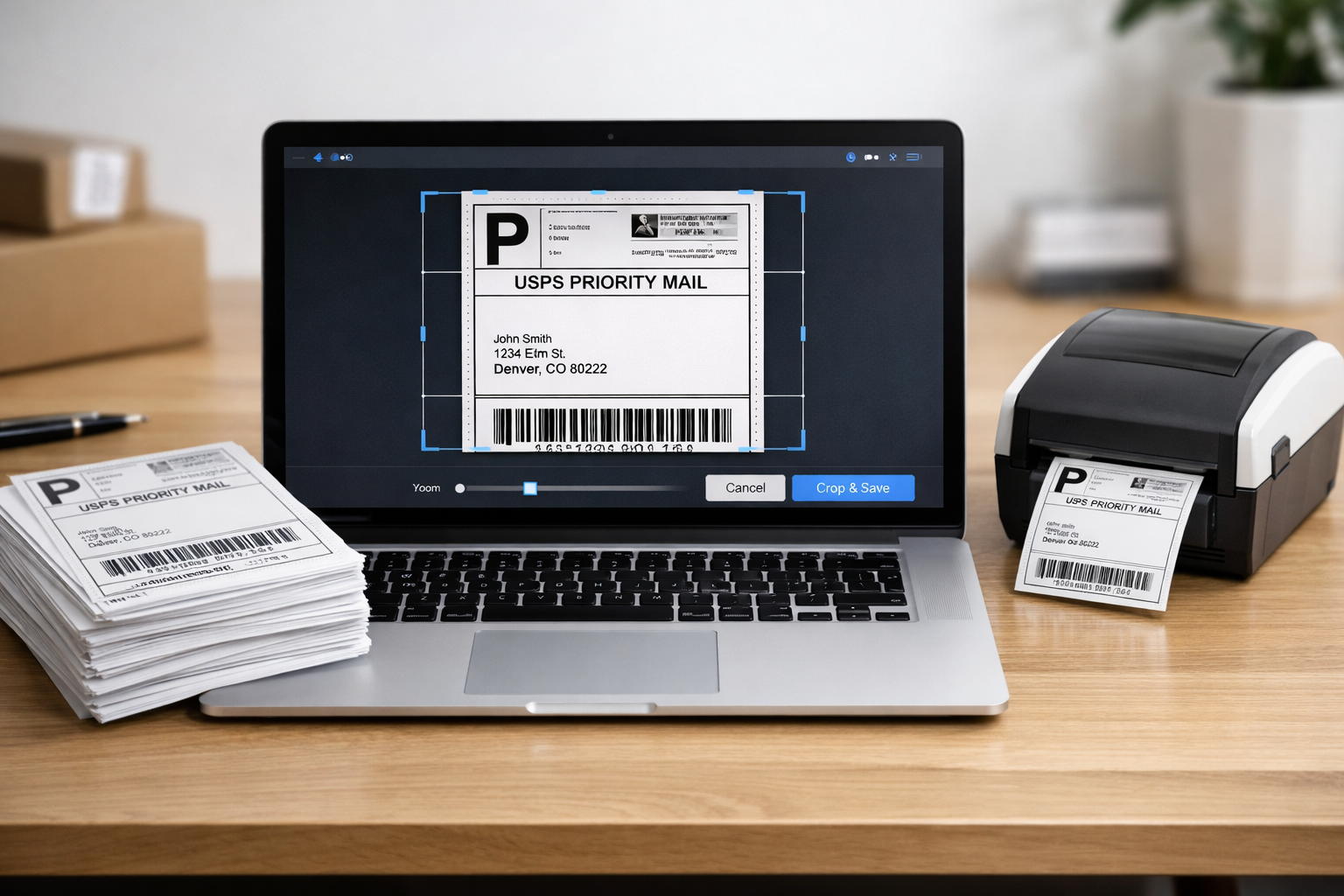
If you work with shipping labels regularly, you already know that printing them is not always as simple as clicking the print button.
Most shipping labels are generated inside a full PDF page, even though the actual label occupies only a small portion of that page. When printed directly, this extra space often causes alignment issues, wasted paper, or barcodes getting cut off. That’s why cropping a shipping label before printing has become an important step for many sellers and small businesses.
In this article, we’ll explain why shipping labels need cropping, how an online label cropper works, and how you can prepare print-ready labels without using any software.
Why Shipping Labels Often Don’t Print Correctly
Shipping platforms usually generate labels in standard document sizes like A4. Printers, especially thermal printers, expect labels to fit within specific dimensions. This mismatch creates common problems such as:
- Large white margins around the label
- Barcodes shifting out of position
- Address text appearing too small or off-center
- Labels not fitting sticker paper properly
These issues are not printer defects. They are usually caused by the extra space included in the PDF file. Cropping the label removes unnecessary areas and helps ensure accurate printing.
What Is an Online Label Cropper?
An online label cropper is a browser-based tool that allows you to trim unwanted parts of a PDF or document and keep only the required label area.
Instead of editing the file manually using complex software, you simply upload the label, select the visible label section, and download a clean version that’s ready to print.
Because everything happens online, there’s no installation, setup, or technical learning involved.
How to Crop a Shipping Label PDF Step by Step
Cropping a shipping label online usually follows a simple and practical workflow.
First, upload the shipping label PDF you downloaded from your seller panel. Once the file opens, you’ll see a preview of the page.
Next, adjust the crop area by dragging the selection box around the label. This step helps remove headers, footers, and blank margins while keeping important elements like barcodes and addresses intact.
After adjusting the crop area, preview the result carefully. Make sure the barcode is fully visible and the text is not cut from any side.
Finally, download the cropped file. The result is a print-ready PDF that fits better on label paper or thermal printers.
How Cropping Helps With Printing Accuracy
Cropping a label doesn’t change its content. It only removes unused space around it. When done correctly:
- Barcode clarity remains intact
- Text alignment improves
- Printing becomes more predictable
- Paper and label sheets are used efficiently
This makes label cropping a practical step for anyone who prints labels frequently.
Do You Need Software to Crop PDF Labels?
In the past, cropping PDFs required desktop tools like document editors or design software. These tools often come with steep learning curves and unnecessary features.
Online tools remove that complexity. They focus on one task — cropping documents — and do it in a straightforward way. For users who only need to prepare labels for printing, an online solution is usually easier and faster.
Tips for Creating Print-Ready Shipping Labels
To avoid printing errors, keep these simple tips in mind:
- Always preview the cropped label before printing
- Use “Actual Size” or 100% scale in printer settings
- Avoid “Fit to Page” unless required
- Test one label before bulk printing
These small checks can prevent reprints and dispatch delays.
Common Questions About Cropping Shipping Labels
Does cropping reduce barcode quality?
No. Cropping only removes extra space and does not compress or blur the barcode.
Can cropped labels be used with thermal printers?
Yes. Cleanly cropped labels are often better suited for thermal printing.
Is an internet connection required?
Yes, since online croppers work directly in the browser.