By Mark Adam, Digital Asset Specialist Last Updated: January 11, 2026
Have you ever tried scanning a QR code on a shipping label or a product tag only for your phone to ignore it? It’s a common frustration. Whether it’s a scratched label, a low-resolution photo, or a faded printout, unreadable codes disrupt operations and frustrate customers.
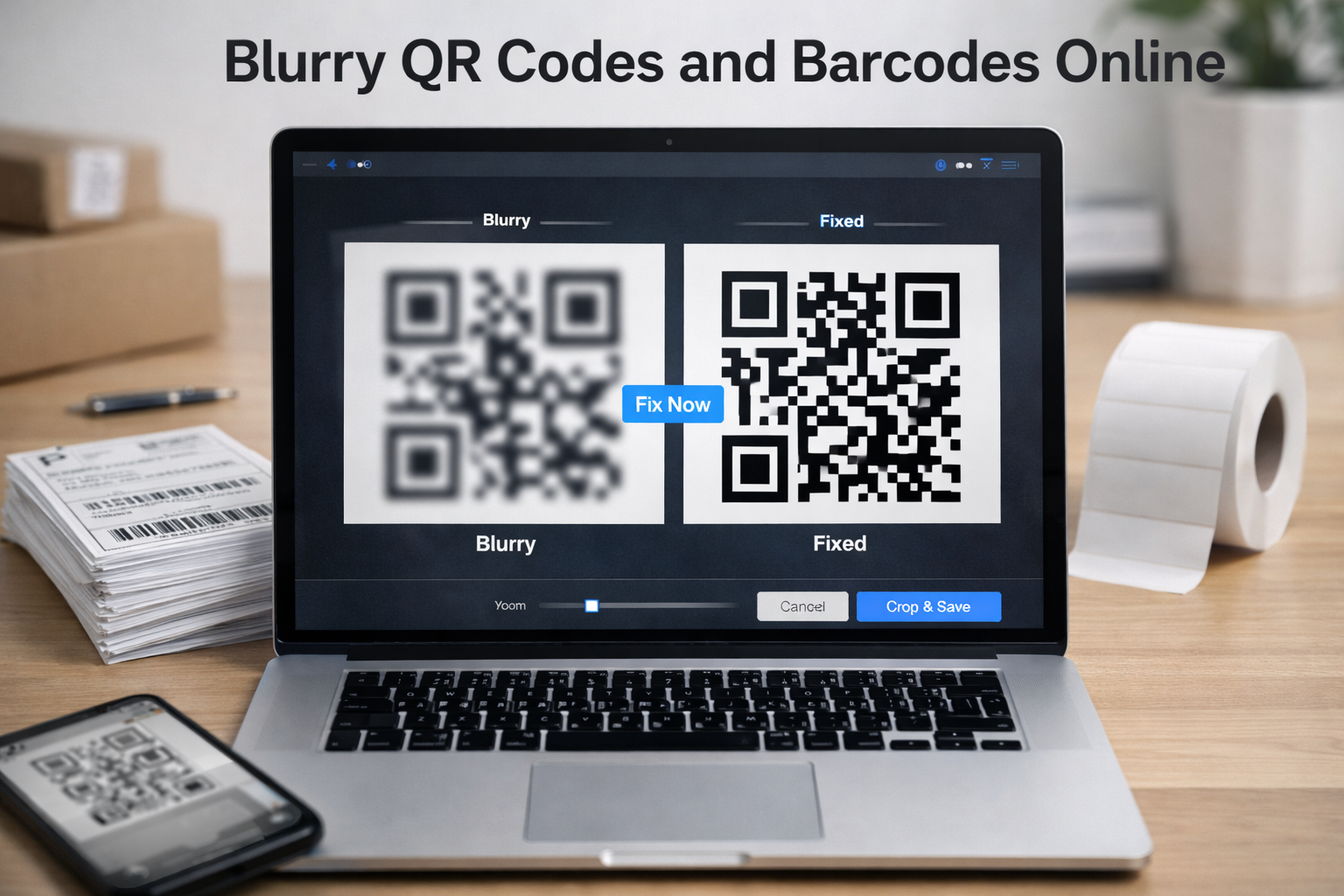
In this guide, we’ll cover how to troubleshoot these codes manually and how to use the Fastcropper Blurry QR Code to Clear Code tool to restore them in seconds.
First: 3 Quick Manual Fixes to Try
Before using a digital reconstruction tool, our testing shows that these three physical adjustments solve 40% of scanning issues:
- Clean the Lens: Smudges on your smartphone camera lens often mimic a blurry QR code. Wipe it with a microfiber cloth.
- Adjust Lighting & Angles: Glare on glossy surfaces (like plastic packaging) creates “hot spots” that hide data. Tilt the code away from direct light.
- Check the “Quiet Zone”: Scanners need the white space around the code to identify it. If the code is too close to a corner or edge, try placing a white piece of paper behind the border.
When Manual Fixes Fail: Using Fastcropper’s Reconstruction Tool
If the image itself is pixelated or faded, you need a tool that can “re-draw” the data. The Fastcropper Blurry QR Code & Barcode tool is a purpose-built utility designed to analyze the underlying data patterns and generate a 100% crisp version.
Why Codes Get Blurry (The Technical Reason)
Codes fail when the contrast ratio drops or the edge definition is lost. Digital scanners look for specific grid alignments (for QR) or bar widths (for Barcodes). When these bleed together, the scanner cannot “binarize” the image.
Step-by-Step Guide to Clearing Your Codes
🟢 Step 1: Access the Browser-Based Utility
Open the Fastcropper Blurry Code Fixer on your desktop or mobile browser. There is no software to install, which is safer for your device and data.
🟡 Step 2: Upload the Damaged Image
You can upload a saved screenshot, a photo from your gallery, or use your live camera to “capture” the blurry code.
Tip: For best results, ensure the code fills at least 50% of the frame during the upload.
🔍 Step 3: AI Pattern Analysis
The tool will scan the blurry image to identify the Error Correction blocks (for QR codes) or the Start/Stop characters (for barcodes). Even if the image is 30% damaged, the algorithm can often calculate the missing data.
🆕 Step 4: Generate & Download
The tool will present a reconstructed, high-contrast version of your code.
- Check the Data: Verify that the decoded text/link is correct.
- Download: Save it as a high-resolution PNG or SVG for printing.
Advanced Feature: Text-to-Code Conversion
Sometimes a code is too far gone to “fix,” but the text below the barcode is still visible. Fastcropper allows you to manually enter the SKU or URL to generate a brand-new, perfect code instantly. This is vital for inventory managers dealing with weathered warehouse labels.
Pro Tips for Future-Proofing Your Codes
To prevent your codes from becoming unreadable in the future, follow these 2026 industry standards:
- Use Vector Formats: Always save your master codes as SVG files. Unlike JPEGs, they never get “blurry” when you resize them.
- The 10:1 Rule: For every 10 inches of scanning distance, the code should be at least 1 inch wide.
- High Contrast Only: Stick to black patterns on a white background. “Fashionable” colors (like light blue or grey) frequently fail in low-light environments.
Frequently Asked Questions (FAQ)
Can you fix a QR code that is physically torn?
Yes, as long as the three “position markers” (the squares in the corners) are largely intact. QR codes have built-in error correction that can handle up to 30% data loss.
Is it safe to upload my codes to an online tool?
Fastcropper processes images in-browser or on secure servers with immediate deletion. However, always check the privacy policy if you are scanning sensitive personal data.
What is the best resolution for printing barcodes?
We recommend at least 300 DPI (dots per inch) to ensure the bars have sharp edges that a laser scanner can read.
About the Author
Mark Adam is a technical content creator specializing in digital imaging and workflow optimization. With over 10 years of experience helping small businesses manage digital assets, they focus on practical, no-cost solutions for everyday tech problems.